How to organize my work?
Organize your work with issues and branches
Section titled “Organize your work with issues and branches”We previously discussed how to work with issues and branches. Issues help you keep track of tasks, while branches allow you to work on different topics in parallel. Combining these two features can significantly enhance the productivity of your team.
Link branches to issues
Section titled “Link branches to issues”In general, when you create a new branch for a specific task, it is a good practice to link it to the corresponding issue.
To link an issue to a branch, you can include the issue number in the branch name (e.g., 3-issue-name for issue #3).
This way we clearly indicate which issue that branch is addressing.
There is also a more automated way to link branches to issues:
- Go to the page of the issue you want to work on.
- On the right-hand side menu you will find a button called “Create branch”, under the “Development” section.
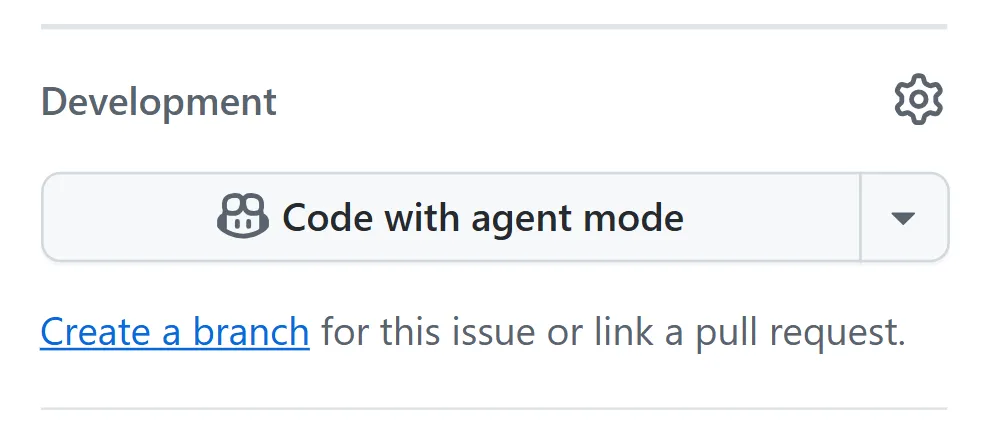
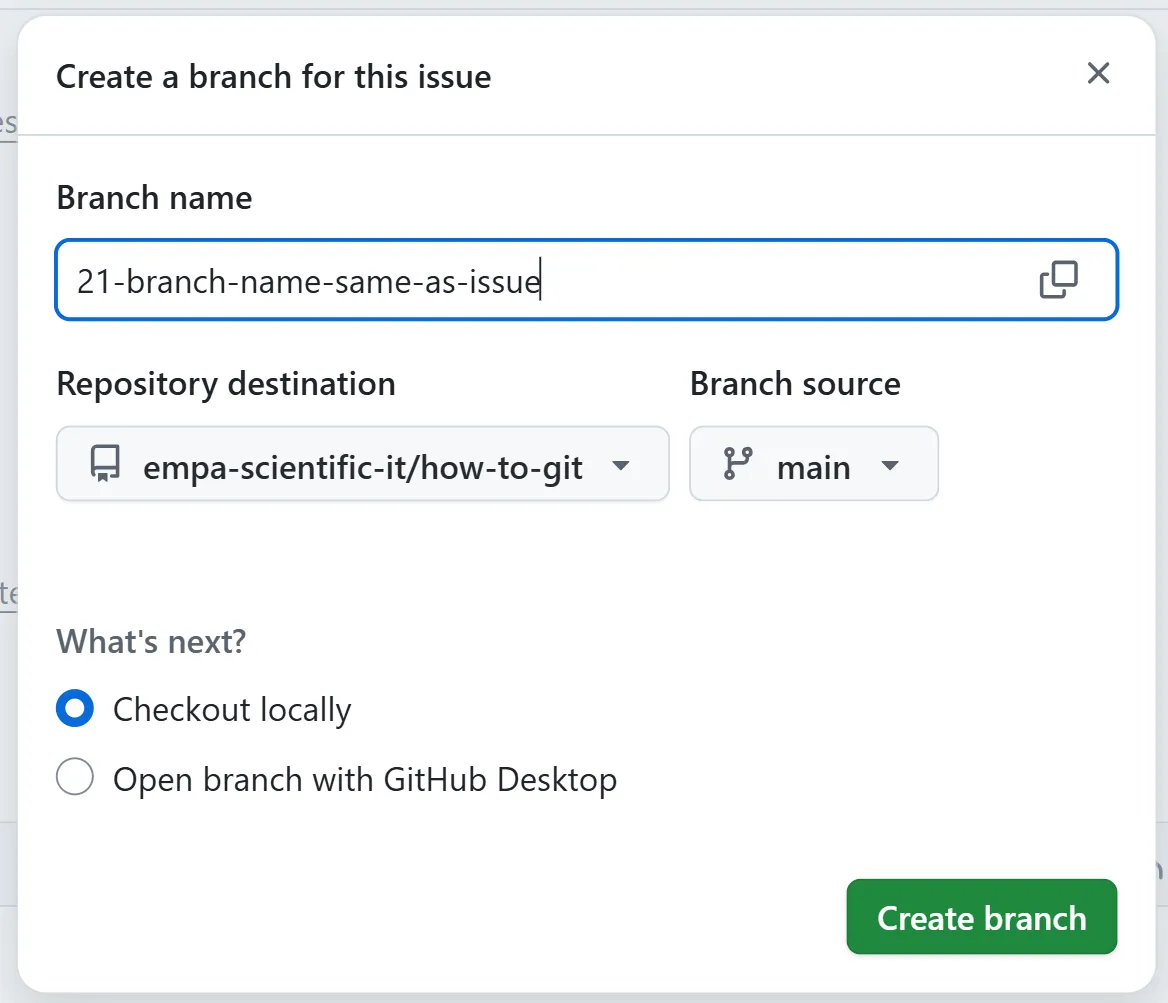
Clicking this button will open a dialog window where you can specify the name of the new branch. By default, the branch name will be created by using the issue number and title. You can modify the branch name, if needed, but it is recommended to keep at least the issue number in the branch name for clarity.
- The option “Repository destination” points by default to the current repository you are working on.
- You can leave the option “Branch source” set to
main, unless you have a specific reason to start from a different branch. - Keep the option “Checkout locally” selected.
- Click on the green button “Create branch”.
- Close any additional dialog window that may appear.
- Switch to the new branch to start working on the issue.
Closing an issue with a branch
Section titled “Closing an issue with a branch”Once you consider an issue to be completed and you are ready to merge your branch, it is time to create a pull request.
It is a good practice to link the corresponding issue to the pull request, by adding it to the pull request’s description.
To do that, you can simply write # followed by the issue number (e.g., #3) and the link will be automatically created.
If you also combine that with specific keywords then the issue can be automatically closed when the pull request is merged.
For example, you can write “Closes #3” or “Fixes #3” in the pull request description.